UI/UX Design
10 Bad UI Examples: Poor Interface Design and How to Fix It

June 16, 2026
February 16, 2025

Bad UI does not always look broken at first glance.
Sometimes it looks polished, but users still get confused, miss the main action, abandon a form, or leave before completing the task.
That is what makes bad UI dangerous. Users rarely explain what went wrong. They simply stop using the product.
In this guide, we will look at 10 bad UI examples from websites, mobile apps, SaaS dashboards, software, and real-life interfaces.
You will see what makes each interface difficult to use and how to fix the problem without adding more complexity.


Quick Answer: What Makes a Bad UI?
A bad UI is an interface that makes it harder for users to understand, navigate, or complete a task.
Common signs include unclear buttons, poor contrast, cluttered layouts, confusing forms, inconsistent navigation, hidden actions, too many pop-ups, and weak error messages.
Good UI helps users move with confidence. Bad UI makes them stop, think too much, or guess what to do next.
10 Bad UI Examples and How to Fix Them.
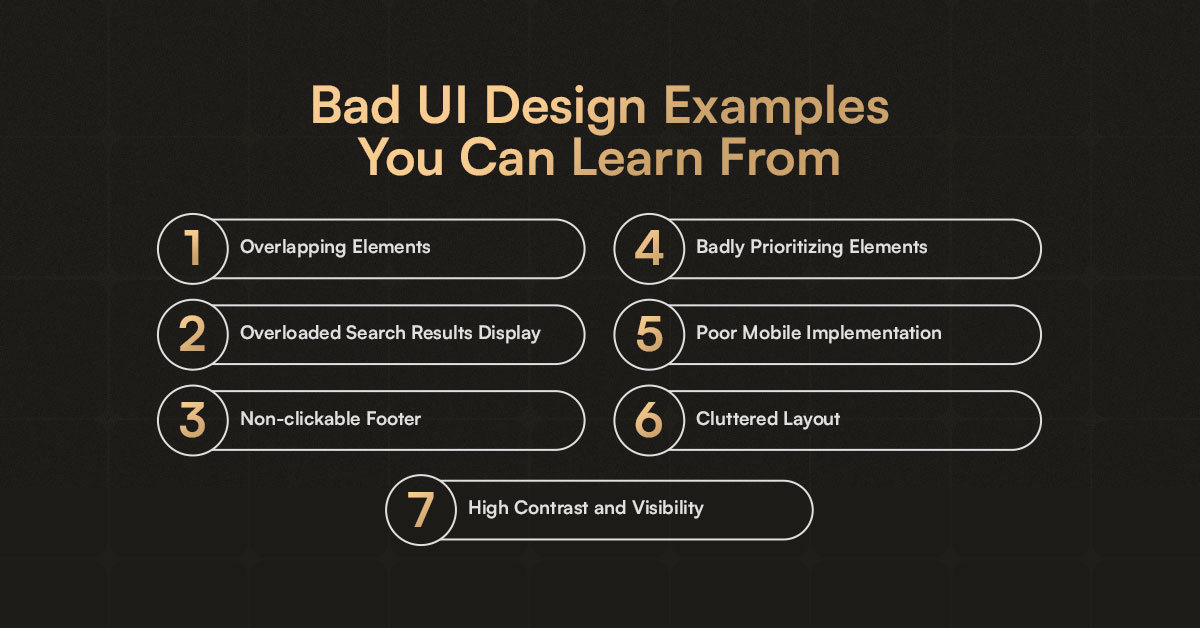
Bad User Interface Design on Websites
Some websites bombard users with excessive information, making it difficult to identify key actions.
Example 1: Cluttered Homepage with No Clear CTA
A cluttered homepage is one of the most common bad UI examples.
When a page shows too many banners, buttons, offers, menus, and messages at once, users struggle to understand what matters most.

Why it hurts UX
Users cannot quickly identify the main action. This creates decision fatigue and lowers conversion.
Real-Life Example
Verizon's website has been criticized for inconsistent fonts and requiring numerous clicks to navigate, overwhelming users with information.
How to fix it
Use one primary CTA, reduce competing sections, group related content, and create a clear visual hierarchy. The most important action should be visible without forcing users to search for it.
Example 2: Poor Contrast and Hard-to-Read Text
Poor contrast makes an interface difficult to read, especially for users with low vision, tired eyes, or small mobile screens.
This is a common poor UI design problem in dark mode, cards, buttons, and secondary text.
.webp)
Why it hurts UX
Users cannot read the content comfortably, so they skip information or leave the page.
Real-Life Example
HBO Max faced criticism for low-contrast design, making it challenging for users with visual impairments.
How to Avoid It
Check contrast between text and background. Use strong contrast for body text, buttons, form labels, error messages, and navigation items. Do not rely on color alone to show important states.
Example 3: Confusing Forms with Missing Labels
Bad form design is a major reason users abandon signups, checkouts, applications, and contact forms.
Common issues include too many fields, unclear labels, placeholder-only instructions, weak error messages, and no progress indicator.
.webp)
Why it hurts UX
Users do not know what to enter, how long the process will take, or how to fix mistakes.
Real-Life Example
Workday's job application process requires applicants to fill in extensive information manually, even after uploading a resume, leading to frustration.
How to Avoid It
Keep forms short, use visible labels, explain errors in plain language, show progress for long forms, and only ask for information that is truly needed.
Example 4: Overloaded Product Pages and Content Pages
Some websites show too much information at once: multiple CTAs, ads, banners, comparison tables, recommendations, pop-ups, and dense product details.
.webp)
Why it hurts UX
Users lose focus and struggle to make a decision.
Real-Life Example
Amazon’s cluttered UI design confuses users with excessive information, multiple call-to-actions, and inconsistent layouts across devices.
How to Avoid It
Prioritize the page around one main user goal. Use clear sections, better spacing, filters, sticky key actions, and progressive disclosure for secondary information.
Bad UI Examples in Mobile Apps
Some mobile apps fail to maintain consistency in gestures, making it hard for users to navigate.
Example 5: Inconsistent Gestures and Controls in Mobile Apps
Bad UI apps often use inconsistent gestures, icons, or navigation patterns across screens.
A swipe may open a menu in one place but delete an item somewhere else.
.webp)
Why it hurts UX
Users cannot build a reliable mental model of how the app works.
Real-Life Example
Microsoft Teams has been noted for inconsistent UI elements across different sections, disrupting user workflows.
How to Avoid It
Follow iOS and Android platform patterns, keep gestures consistent, label unclear icons, and avoid hiding important actions behind gestures only.
Example 6: Pop-Ups and Notification Overload
Too many pop-ups, modals, permission requests, and notifications can make an interface feel aggressive.
This is one of the most common bad UX examples in apps and websites.
.webp)
Why it hurts UX
Users feel interrupted before they receive value.
Real-Life Example
Netflix's autoplay feature automatically plays trailers when users hover over titles, which can be intrusive.
How to Avoid It
Ask for permissions only when needed, let users control notifications, avoid stacking pop-ups, and make every interruption easy to dismiss.
Bad UI in Software & Enterprise Tools
A "bad UI" in software and enterprise tools refers to a user interface design that is confusing, cluttered, unresponsive, or poorly organized.
Example 7: Inconsistent Software Settings
Enterprise tools and desktop software often create bad interface design by mixing old and new layouts.
Users may need to jump between different settings pages to complete one simple task.
.webp)
Why it hurts UX
Users waste time searching and may change the wrong setting.
Real-Life Example
Windows 10 settings and control panel coexist in an unintuitive manner, often leading to user confusion when changing system preferences.
How to Avoid It
Group settings by task, use consistent labels, keep related controls together, and provide search inside complex settings areas.
Example 8: Overcomplicated Dashboards
A dashboard becomes bad UI when it tries to show every metric at once.
Too many charts, filters, widgets, and tables make it harder to understand what needs attention.
.webp)
Why it hurts UX
Users see data, but they do not know what to do next.
Real-Life Example
Salesforce has been criticized for its complex interface, which can be daunting for new users.
How to Avoid It
Start with the most important user decisions. Show key metrics first, group secondary data, use filters carefully, and add short explanations for unusual numbers.
Bad UI in Everyday Devices (Unexpected UX Fails)
Bad UI design can be fatal to the overall customer experience. Here are some of the worst fails to avoid when building your product!
Example 9: Confusing ATMs and Payment Kiosks
Bad user interface examples are not limited to websites and apps.
ATMs, ticket machines, parking meters, and payment kiosks often fail because instructions are unclear or buttons do not match what users expect.
.webp)
Why it hurts UX
Users make errors in public, often under time pressure.
Real-Life Example
Some ATMs have interfaces that are not intuitive, leading to user errors and frustration.
How to Avoid It
Use simple language, clear step-by-step screens, visible back buttons, large tap targets, and confirmation before final actions.
Example 10: Car Infotainment Systems with Too Many Steps
Some car interfaces hide basic actions like climate control, volume, or navigation inside multiple touchscreen menus.
.webp)
Why it hurts UX
Drivers need quick access to essential controls without distraction.
Real-Life Example
Certain vehicles have complex infotainment systems that require multiple interactions for simple tasks, diverting driver attention.
How to Avoid It
Keep essential controls visible, reduce steps for common actions, use physical controls where helpful, and avoid hiding safety-related functions deep in menus.
Common UI Problems and How to Avoid Them
Most bad UI design comes from a few repeated mistakes:
1. Cluttered layouts that make everything compete for attention.
2. Unclear navigation that hides important pages or actions.
3. Poor contrast that makes text, buttons, and labels hard to read.
4. Forms that ask for too much information too early.
5. Inconsistent buttons, icons, gestures, or page patterns.
6. Weak error messages that say something went wrong but do not explain how to fix it.
7. Too many steps for simple actions.
8. Ignoring accessibility, mobile usability, and keyboard navigation.
To avoid these UI problems, start with the user’s main task.
Remove anything that does not support that task, make the next action obvious, keep patterns consistent, and test the flow with real users before scaling the design.
Good UI vs Bad UI Design Examples
Good UI makes the next step clear. Bad UI makes users guess.
A good signup form asks only for the information needed to create an account.
A bad signup form asks for too many details before the user understands the value of the product.
A good dashboard highlights the most important metrics first.
A bad dashboard shows every chart at once and makes users work to find the insight.
A good mobile app uses familiar navigation patterns. A bad mobile app hides important actions behind unclear icons or inconsistent gestures.
The difference is not decoration. Good UI reduces effort. Bad UI adds friction.
FAQs About Bad UI Examples
1. What is a bad UI example?
A bad UI example is any interface that makes a task harder than it needs to be.
Common examples include cluttered dashboards, confusing menus, unreadable text, hidden buttons, long forms, and unclear error messages.
2. What is considered a poor user interface?
A poor user interface lacks clarity, consistency, accessibility, or useful feedback.
Users may not know where to click, what information is required, or how to recover from a mistake.
3. What are examples of bad UI design on websites?
Examples of bad UI design on websites include overloaded homepages, too many CTAs, pop-ups that block content, poor mobile layouts, low-contrast text, and navigation menus with unclear labels.
4. What apps have bad UI?
Apps with bad UI usually have inconsistent navigation, unclear icons, too many notifications, hidden actions, or confusing onboarding.
Instead of naming one app forever, it is better to judge the interface by the specific task users are trying to complete.
5. What are common bad UI mistakes?
Common bad UI mistakes include cluttered layouts, poor contrast, weak visual hierarchy, confusing forms, inconsistent buttons, small touch targets, hidden navigation, and error messages that do not explain the fix.
6. What is the difference between bad UI and bad UX?
Bad UI refers to the visible interface, such as buttons, text, forms, spacing, colors, and menus.
Bad UX refers to the full user experience, including the flow, number of steps, feedback, speed, clarity, and ease of completing a task.
7. What makes a user interface confusing?
A user interface becomes confusing when users cannot predict what will happen next.
This often happens because of unclear labels, inconsistent patterns, hidden actions, weak feedback, or too many choices on one screen.
8. How do you fix bad UI design?
To fix bad UI design, simplify the layout, improve contrast, clarify navigation, reduce unnecessary steps, use consistent components, write helpful error messages, and test the flow with real users.
9. What is the difference between good UI and bad UI?
Good UI helps users complete a task with less effort.
Bad UI creates friction by making users think too much, search too long, or guess what to do next.
Get the Best UI Design from the Bad User Interface Design Examples
Now you've got the solution for avoiding Bad UI. Learning from bad UI mistakes helps designers and businesses create smooth and engaging digital experiences.
Make usability a priority!
If you would like to speak with a UI/UX design services expert, book a free 15-minute call to see how you can solve the common UI design mistakes that your product may have.